Skip to content
English
  • There are no suggestions because the search field is empty.

Label Printing 101

Whether you're setting up your location for the first time or adding new product to a storage unit, here is the NomadGo guide to get the best results

Printing Pro Tips

We recommend using Avery® Address Labels (8460), 1" x 2-5/8", which can be used with most standard inkjet and laser printers.
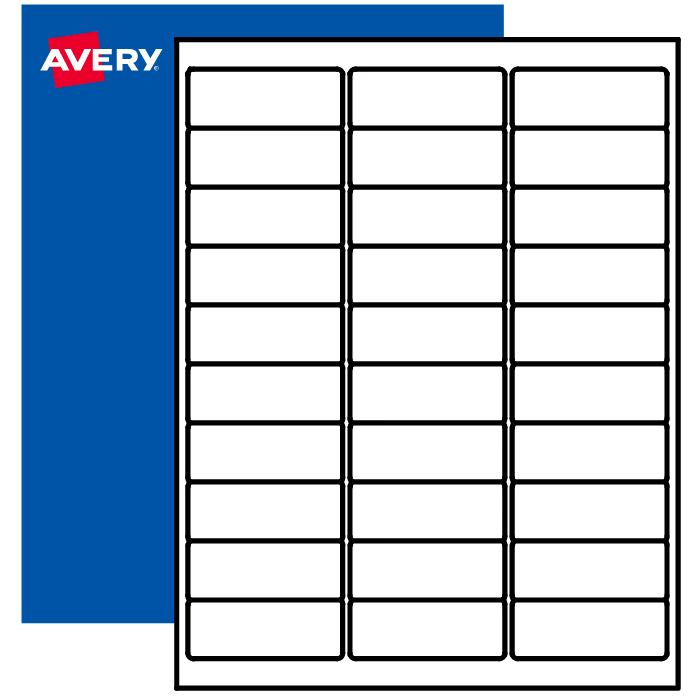
94200
 
  • Load one sheet at a time into the manual feed tray.
  • Print a test sheet before doing a full run. Look for QR Codes or text cutting close to the edges.
  • Don't use smudged, ripped, or damaged labels

The 3 Labels You Can Install

1. QR Codes

QR Code labels support the check-in process at your counting locations. These tell the app where you are counting.

Q: Where do I place my QR Code?

A: Always place the QR Code in the center of the location, around eye level.

Wire Metro Racks → use shelf clips
Shelved units with doors → place the label outside the door.


Q: What does "Label Orientation" mean?

A:

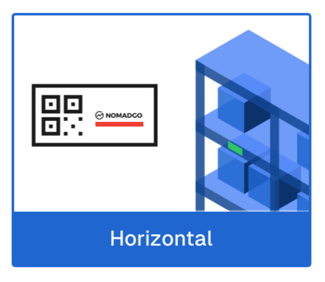
Horizontal Labels

  • This is the default label orientation, and you'll most likely select this during setup.
  • As a general rule, don't scale the label to make it bigger or smaller when printing.
  • When placing the label, make sure the NomadGo logo is upright and readable.
Horizontal

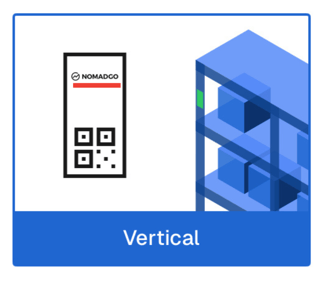
Vertical Labels

  • When you're space can't accommodate a horizontal label, vertical labels are your secondary option.
  • These might be placed to save space, or if the shelf-front is too thin to house a label.
  • When placing the label, make sure the NomadGo logo is upright and readable.
Vertical
2. Shelf Labels

Shelf Labels = printed labels to count Product Labels and Quick List Labels. These tell the app what you are counting.

Q: Where do I place Shelf Labels?

A:

Products on Metro Racks →  Clip the label to the shelf in front of each product row, centered under the product.
Quick List Labels→ . Clip the label to Metro Racks or place near the the items you will count with your Quick List
On Cabinets or Cubbies→  Place the label on the ledge or edge inside the cabinet, centered in front of the product row.
Open Cups and Lids →  Place labels directly on the shelf, oriented to the lower left corner of the box
Open. Bag-in-Box (BiBs) →  Place label below-center of the product with the spout facing outwards. 


Q: Why is there a label on screen that's not on the shelf? 

A: Ghost Labels usually happen when a label has been moved or removed from your counting location. Tap the Ghost Label on screen to delete them, then scan them in again in their new position to re-register them with the app.
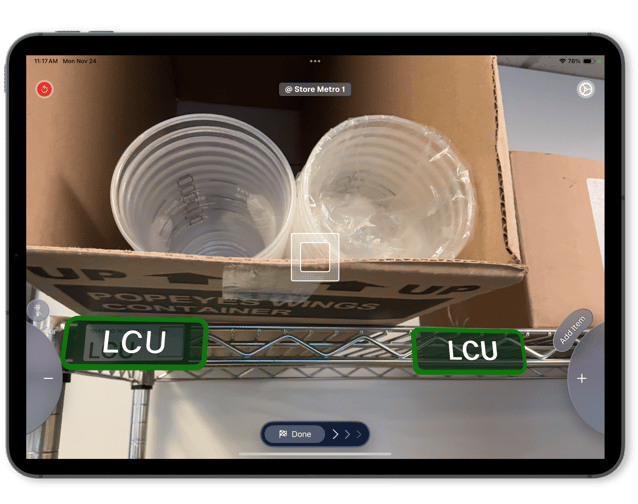
Popeyes Ghost Label


3. Use-by Labels

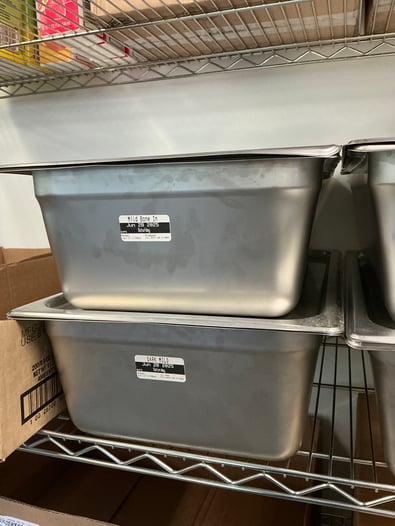
Use-by Labels = printed labels placed on 1/3, 1/9, 1/6 pans that indicate production and use-by dates. These will have 3-character keywords that tell the app what it's counting

Q: Where do I place my Use-by Labels?

A: Use-by Labels are placed directly on your prep pans. The front = the narrow side of the pan.
IMG_1193