.svg)
Button & Function |
App Area |
Image |
|
Settings Cog: Opens Settings Menus in the
|
Various *see below |

|
| Check-In: Tap to check into a Quick List or open the Counting Mode camera and scan a QR Code. | Location Menu |  |
| Paddles: Used during Counting Mode to increase and decrease item quantities. | Counting Mode |  
|
| Add Item: Use to search and select a missing item from your count during Counting Mode. | Counting Mode |  |
| Drop Item: Used after selecting an item with Add Item button to drop the item into the counting area. | Counting Mode |  |
| Edit Item: Used to modify a counted item | Counting Mode |  |
| Delete Item: Tap and hold an item's green bubble to open this popup. Use the trash icon to remove an item from the counting area. Tap the item again to re-scan. | Counting Mode | 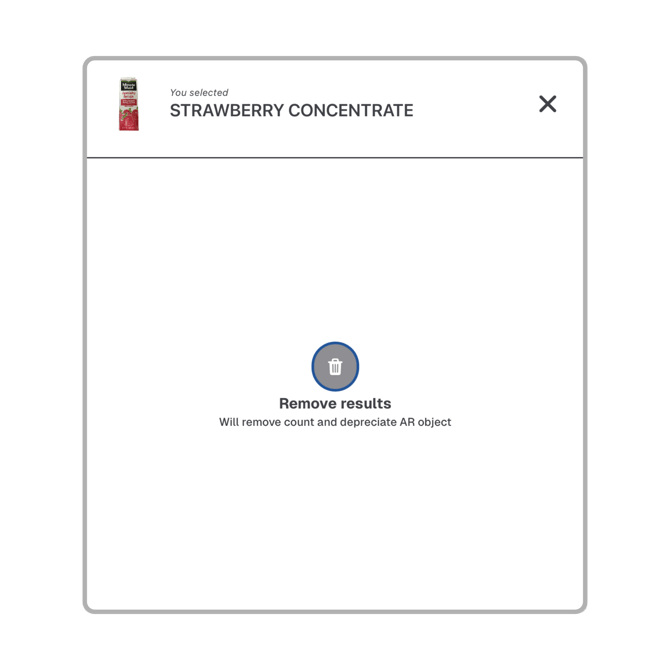
|
| Flashlight: Use when counting in a dim area. | Counting Mode |  |
| Pan Size Selector: Select the correct pan size (1/9, 1/6, etc.) when counting items using Prep Labels. | Counting Mode |  |
| Done Slider: Slide to capture your count when finished scanning at a Location. | Counting Mode |  |
| Location Tracker: Use to open the Location Menu and track progress as all Locations are scanned. | Counting Mode |  |
| Reset: Uses to reset during Counting Mode if the scene looks misaligned. | Counting Mode | 
|
| Review: The green check signals that the Location has been counted and is ready to review. | Review |  |
|
Rescan: Used to rescan a Location from the Location Menu. |
Review |  |
| Add new item: Search and add a missing item to your count from the Review Screen. | Review |  |
| Product State: Pre-loaded product states are available when using the Add new item feature. Select the state and enter quantity before confirming. | Review | 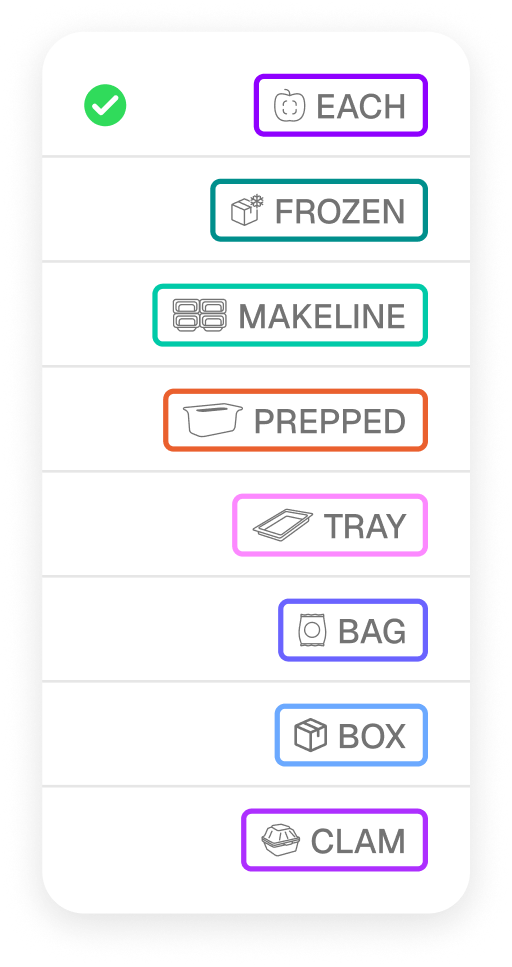 |
| +/- Buttons: Increase or decrease an item's quantity. | Review |  |
| Slide to Delete Slider: Remove a scanned item from the captured count on the Review Screen | Review |  |
| Submit: Finish your Inventory Job and send results. | Review |  |
Menus
Start Screen
|
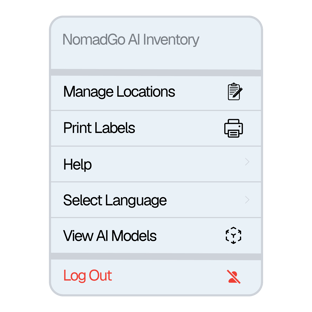
This menu is located in the top-right corner of the Start Screen:
|
 |
Location Menu
|
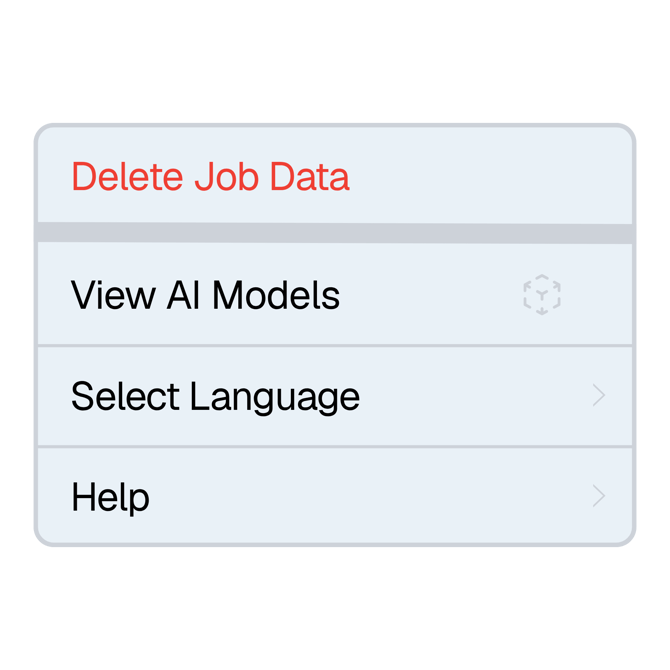
Find this menu in the bottom-left corner of the Location Menu:
|
 |
Counting Mode
|
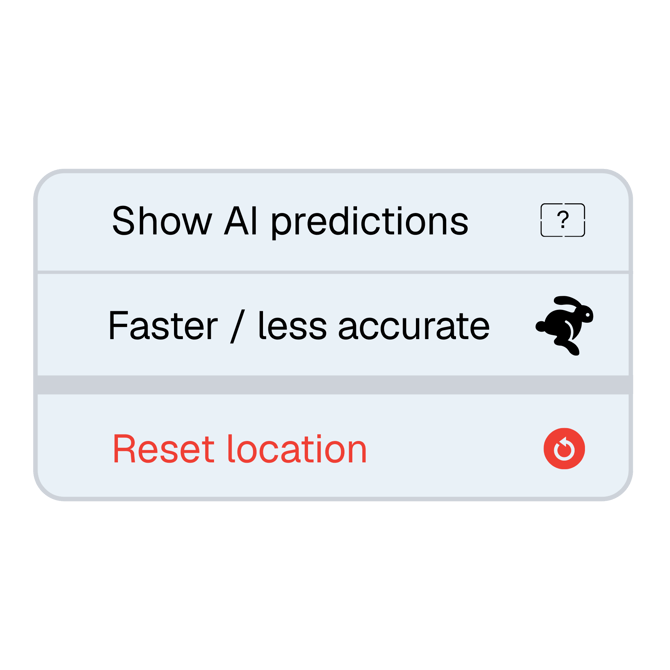
This menu is located in the top-right corner of the Counting Mode screen:
|
 |